How to put your photos on the iPhone Lock Screen
iOS gives you three ways to see your own pictures on the Lock Screen. They look similar in a screenshot and behave very differently through the day. Here is what each one does, so you pick the right one.
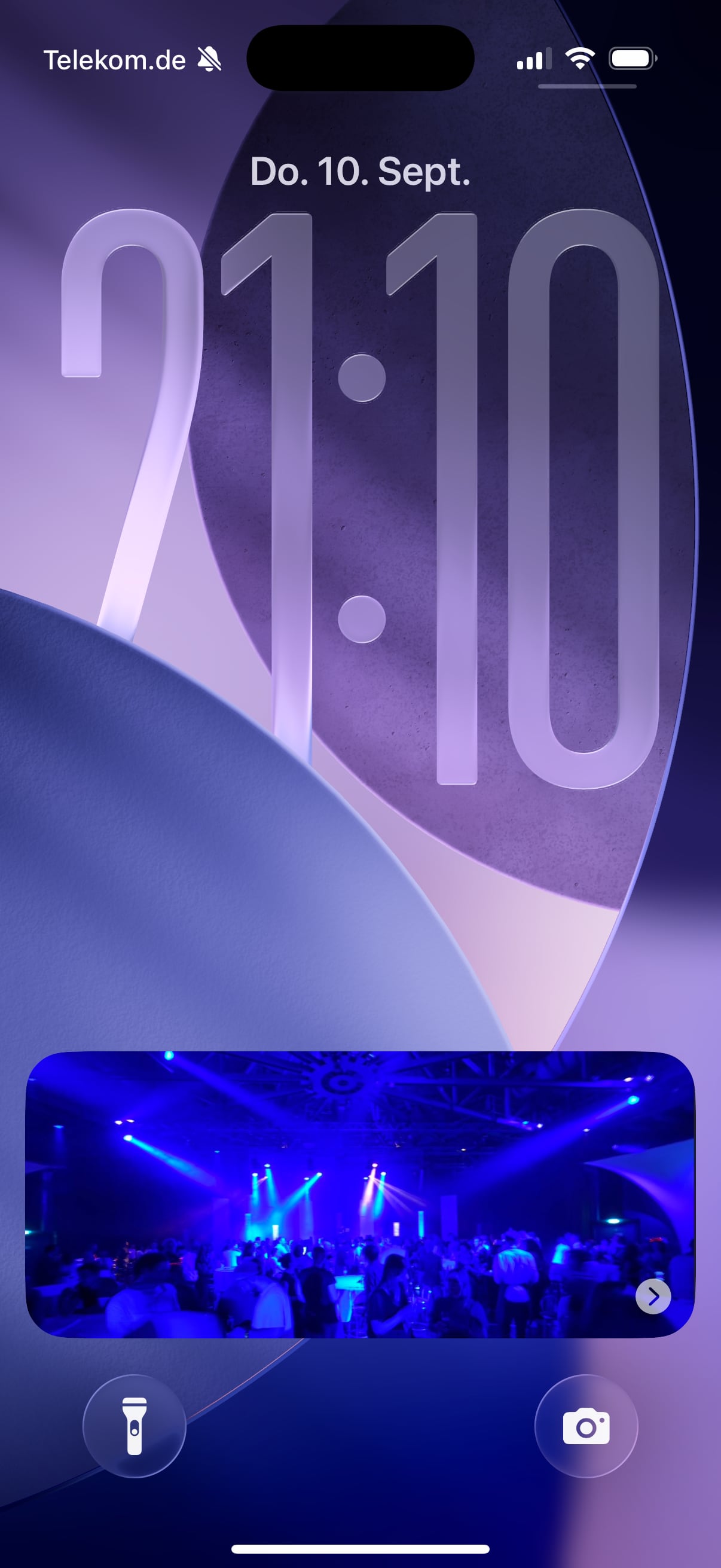
1. Photo Shuffle wallpaper (built into iOS)
Long-press the Lock Screen → Customize → Photo Shuffle. iOS picks photos it thinks are good and rotates them on tap, on lock, hourly or daily. It replaces your wallpaper, sits behind the clock, and you have little say in which pictures it chooses beyond a few categories (People, Pets, Nature, Cities).
Good for: a set-and-forget background. Not for: a specific album, a fixed rhythm, or a photo you can actually look at — the clock and widgets sit on top.
2. Lock Screen widgets
The small widgets under the clock are 40–50 pt tall. A photo there is a thumbnail, not a picture. They are meant for glanceable data (battery, weather, calendar), and iOS refreshes them on its own schedule — you cannot make one change every five minutes.
3. A Live Activity photo frame (what Live Frame does)
Live Activities are the cards iOS uses for timers, deliveries and sports scores. They sit on the Lock Screen below the clock, full width, and — this is the part that matters — they can be updated from a server as often as every few minutes. Live Frame uses exactly that surface to show a real, full-size photo from an album you choose, changing through the day. Your wallpaper stays untouched. The same card appears in the Dynamic Island and, sideways, in StandBy.
The trade-off: iOS ends every Live Activity after about eight hours, so Live Frame works with sessions and scheduled time windows rather than pretending to run forever. See why a Live Activity ends after 8 hours.
Which one should you use?
If you want a background, use Photo Shuffle — it's free and built in. If you want to actually see the people in your photos when you pick up the phone, with an album you chose and a pace you set, that's a Live Activity frame. Nothing stops you from using both: Live Frame does not touch your wallpaper.
Questions
Does this change my wallpaper?
No. A Live Activity is a separate card below the clock. Your wallpaper stays exactly as it is.
Do I need an iPhone with Dynamic Island?
No. The Lock Screen frame works on every iPhone running iOS 18. The Dynamic Island view needs an iPhone 14 Pro or newer.