A photo widget for the Home Screen
The Lock Screen frame is the main event, but the Home Screen can carry the same album — and it can change faster, because iOS lets a widget queue several upcoming photos at once.
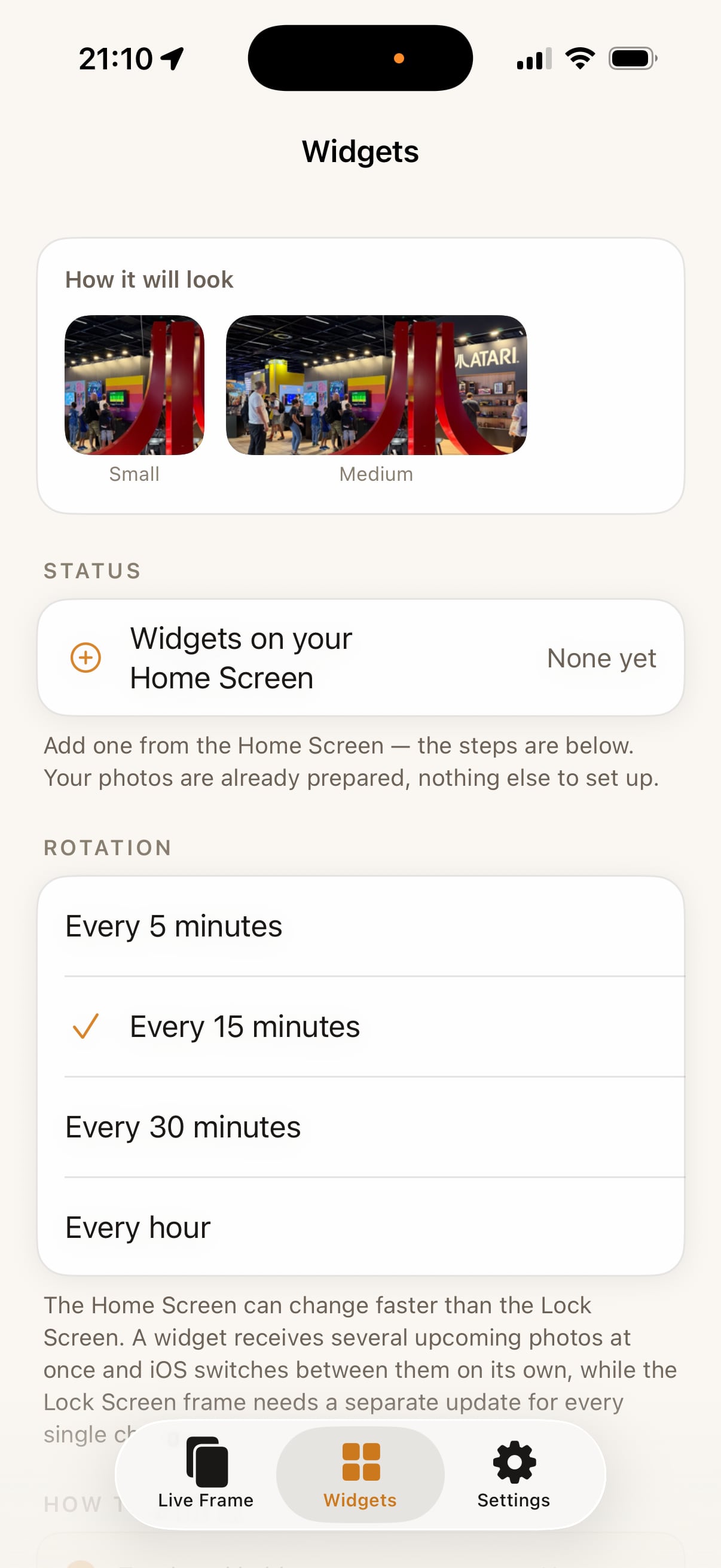
How to add it
- Open Live Frame once so your album is prepared (the app keeps a downsized copy of the photos).
- Long-press an empty spot on the Home Screen → tap Edit → Add Widget.
- Search for Live Frame, pick Small or Medium, tap Add Widget.
That's it. The widget shows the album you chose in the app and changes at the interval you set in the Widgets tab: every 5, 15, 30 or 60 minutes.
Widget vs. Lock Screen frame
The widget needs no session and has no 8-hour limit — it's a normal Home Screen widget. It is smaller than the Lock Screen frame and you have to unlock the phone to see it. Most people use both: the frame for the hours they've scheduled, the widget the rest of the time.
The same album feeds both, so a photo you remove in the app disappears from both.
Questions
Does the widget need Pro?
No. Widgets are available on the free plan with the album you prepared. Pro raises the album from 8 to 100 photos, which matters more for a widget that runs all day.
Why does the widget sometimes skip an interval?
iOS budgets widget refreshes per day. Live Frame hands iOS a timeline of upcoming photos, but the system may stretch the interval when the phone is idle or low on battery.